
Find the Correct Land Rover Map Update by VIN
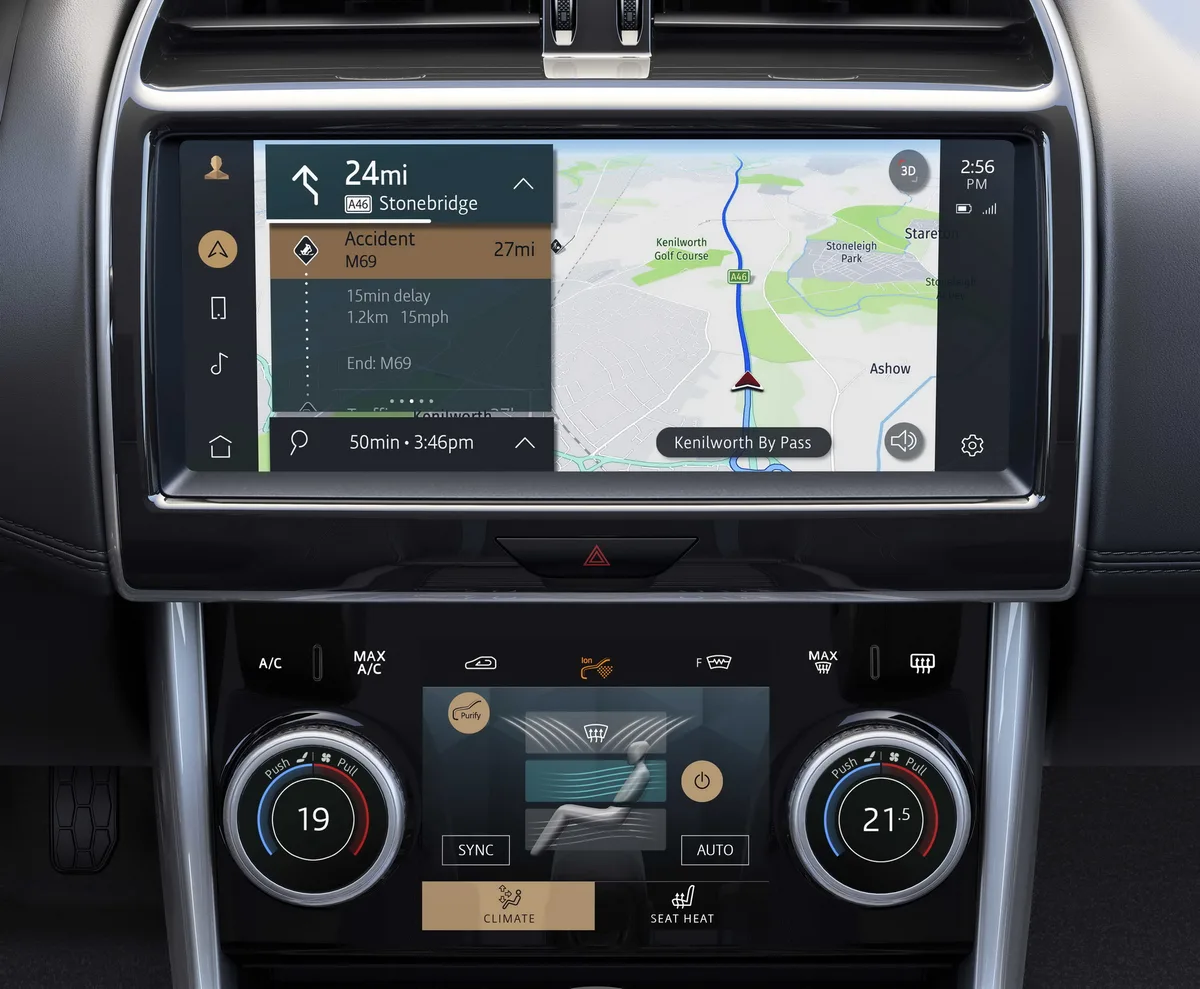
The Short Answer
To find the correct Land Rover map update by VIN you need three facts about the specific vehicle: which infotainment system it has (InControl Touch Pro, Touch Plus Gen2.1, or Pivi Pro), which map region it is configured for, and its current map version. Land Rover map packages are VIN-locked — a file for the wrong vehicle, system or region will be rejected or misinstall. Get the three facts right and the USB update works first time; guess any of them and you are in troubleshooting territory.
This guide shows you how to identify each one, then where to get the file.
Why Map Files Are VIN-Locked
JLR map packages are built per vehicle because the licence, region and system generation are bound to the VIN — the car validates the package against its own identity before accepting a single byte.
That design kills casual file-sharing, but it also kills lazy updating: "the file my mate used on his Discovery" is not a strategy. It is also why map updates are a per-vehicle product — and why vehicles that have changed region (imports) need a conversion step, not just a different download.
Step 1: Identify the Infotainment System
The infotainment generation decides the entire update path — USB file install, PIN-activated download, or fully over the air — so identify it before anything else; the table below covers the three generations.
| System | Approx. years | How to recognise it | Update path |
|---|---|---|---|
| InControl Touch Pro (ICTP) | 2016–2020 | 10-inch touchscreen, dual-view capable, no OTA announcements | USB file install |
| InControl Touch Plus / Gen2.1 | ~2019–2021 overlap | Updated ICTP interface, may request a PIN | USB + VIN-keyed map PIN |
| Pivi Pro | 2020 onwards | Announces software updates in settings | Over the air — no USB |
Quick visual check: if the car has ever told you it updated itself, it is Pivi Pro. Platform notes by model: Defender L663, Range Rover L460, Discovery 5.
Step 2: Confirm the Map Region
The car's configured region — not where it is parked today — determines which package it accepts, which is why imported vehicles reject their local region's files.
Find the configured region in the navigation settings alongside the map version. If the car was imported (Middle East to Europe is the classic route), the configured region is the original market's until someone changes it — and changing it is a configuration job: the map region change service covers Africa/Middle East/Europe conversions.
Step 3: Check the Current Map Version
The current version tells you how stale the map is and what you are updating from — some packages are incremental, and the version string confirms the system generation from Step 1.
In the navigation settings, look for map version/about. Note it down with the VIN. If the version looks nothing like current package naming, the car may have missed years of updates — fine, but worth knowing before choosing a package.
Step 4: Get the Right Package
With system, region and VIN in hand, the package choice is mechanical — use the official downloads where they are available for your vehicle, and VIN-keyed supply where they are not.
- Official portal. JLR's ICTP map downloads live at landrover.here.com — free for some regions and periods, VIN-validated at install.
- VIN-keyed supply. When the portal does not cover your region or you want the file identified for you, the InControl Touch Pro map update supplies the correct package keyed to your VIN.
- PIN-activated systems. Gen2.1/Plus vehicles may need a map PIN — supplied per VIN alongside the package.
Not sure of your VIN's decode? Our free VIN decoder identifies the vehicle spec from the number.
Step 5: Install It Correctly
The install is the easy half once the file is right — a cleanly prepared USB stick, the vehicle powered throughout, and nothing interrupted until the system itself says it has finished.
The full procedure with the mistakes that waste afternoons is in the USB update guide, and if an install has already failed, the map update errors troubleshooting guide maps each failure symptom to its fix.
Import Conversions: The Full Picture
Imported vehicles are the hardest map cases because two things are wrong at once — the car is configured for its original market's region, and the map files for where it now lives will be rejected until that configuration changes.
The full conversion sequence: change the configured map region in the vehicle configuration (a programming job, not a menu option), then install the correct regional package for the new market, then verify navigation, traffic and connected services in the new region. Vehicles imported from the Middle East to Europe are the most common case we handle, and the configuration half is exactly what the region change service provides. Attempting only the file half is the single most common cause of the rejection errors covered in the troubleshooting guide.
Map Update Terms, Translated
The jargon around map updates confuses first-timers more than the procedure does — these four definitions cover ninety per cent of what the portals, forums and product pages will throw at you.
- VIN-locked: the package validates against your vehicle's identity; files are not transferable between cars.
- Region package: maps are sold/downloaded per geographic region, matched to the car's configured market.
- Map PIN: a VIN-keyed activation code some Gen2.1 systems request before accepting downloaded files.
- ICTP / Pivi Pro: the two infotainment generations that decide whether your update arrives by USB or over the air.
Can I decode the map system from the VIN alone? The VIN identifies the vehicle's build specification, which pins down the infotainment generation and original market — enough to select the correct package in almost all cases. Our free VIN decoder gives you the build data; the current map version from the car's settings confirms the rest.
What if my VIN returns no available package? Rare, but it happens with unusual market combinations and grey imports. That is precisely the case for VIN-keyed supply: we identify what the vehicle actually is, source the matching package, and handle region conversion where the car has changed markets since it was built.
Buying the Package: What to Have Ready
Ordering a VIN-keyed map package takes two minutes if you gather four things first — and gathering them first is what makes the file right first time.
Have ready: the full 17-character VIN (windscreen base or door sticker); the infotainment generation from Step 1; the current map version from the navigation settings; and, for imported vehicles, the car's original market if you know it. With those four, package selection is unambiguous. Without them, you are guessing at the two variables — generation and region — that cause every rejection error the troubleshooting guide exists to fix. Five minutes of identification is the cheapest insurance in the whole process.
Frequently Asked Questions
Where do I find my VIN? The 17-character VIN is at the base of the windscreen on the driver's side, on the driver's door aperture sticker, and on the vehicle's registration documents. Use the full 17 characters — map packages are keyed to it exactly.
Can I use a map file from another Land Rover? No. Packages are VIN-locked and generation-specific: another vehicle's file is rejected on validation. Even the same model and year can differ by region and infotainment generation — always match by your own VIN.
How do I know if my car needs a map PIN? Touch Plus / Gen2.1-era systems prompt for activation when installing downloaded map files. If your update asks for a PIN, that is normal behaviour for the generation — the PIN is VIN-keyed and obtainable with the package, not a fault to troubleshoot.
My car was imported — why does it reject local map files? Because the vehicle's configured map region is still its original market. The region must be converted in configuration first, then the correct regional package installed — file swap alone cannot work. The region change service linked above handles both halves.
How often should I update Land Rover maps? Annually is the sensible cadence for regular navigators; road networks drift several per cent a year, and multi-year-old maps misroute daily on new roads. Cars preparing for sale also benefit — a current map is a visible detail at viewing time.
Do I have to pay for a map update every year? It depends on your region and period — some packages are free from the official portal, others are paid, and VIN-keyed supply is a paid service either way. Many owners update every one to two years rather than annually with no meaningful loss; the cost-benefit tips firmly towards updating when the map is more than two years stale.
Correct File, First Time
Tell us the VIN; we identify the system, region and correct package, and supply it — including PIN and region conversion where needed. Order at the map update product or browse sx-tool.com/en/shop/.